

How to Use the Pen Text Reading Smart Scan Translation 112+ Voice Language Translator Device: Complete Setup and Usage Guide for Australians
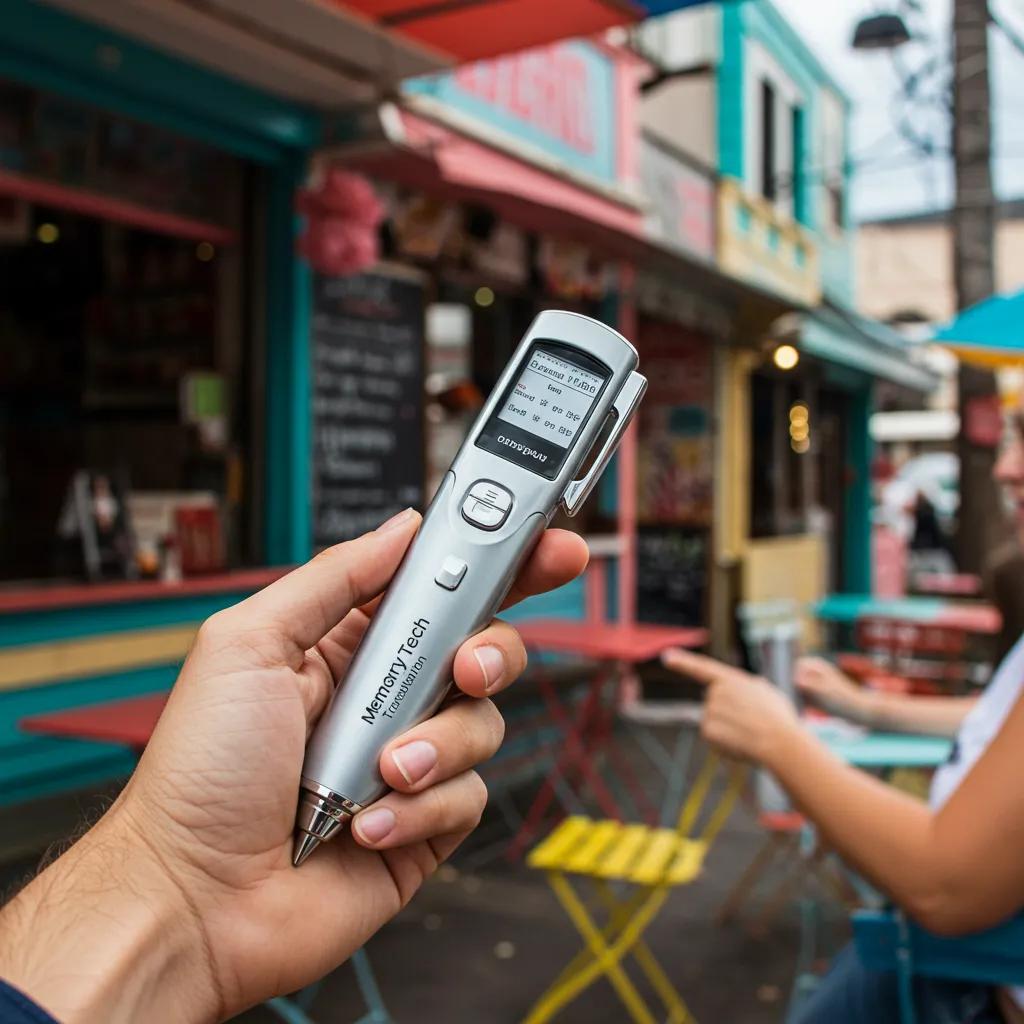
The Pen Text Reading Smart Scan Translation 112+ Voice Language Translator Device is a compact handheld translation tool that combines optical character recognition (OCR) with real-time voice translation across more than 112 languages. This guide explains what the device does, how it converts printed text into readable and spoken translations, and how its voice translation mode facilitates two-way conversations, with a focus on practical use for Australian travellers, students and business users. Many readers want clear, step-by-step instructions for unboxing, initial setup, and getting accurate OCR and voice results without technical frustration, and this article delivers that practical walkthrough. You will learn how to power on and pair the device, perform OCR scans, use conversation mode (including offline options), manage language packs and firmware, and troubleshoot common issues. The guide also covers tips to maximise accuracy, real-world use-cases tailored to Australia, and a brief comparison with other translator device types so you can decide whether a translation pen suits your needs.
What’s Included in the Memory Tech Translation Pen Box and How Do You Perform the Initial Setup?
The Memory Tech Translation Pen typically ships with the core pen unit plus a small set of accessories that support charging, protection and quick setup. Unboxing confirms the physical components and lets you check serial or model identifiers before first power-on, which helps if you need to reference support later. Initial setup focuses on powering the pen, choosing interface language, and connecting to Wi-Fi or Bluetooth for updates and language pack downloads. The steps below show practical first-run tasks and common prompts to expect so you can move quickly into testing OCR and voice translation features.
What Comes in the Box of the Memory Tech Translation Pen?
Expect a concise accessory list that supports immediate use and safe storage. Typical inclusions are the pen reader, a USB-C cable for charging and data transfers, a quick-start user manual that outlines basic UI gestures, a protective carry case to prevent tip damage in transit, and a limited warranty card. Check the manual for your device serial or model code and keep original packaging for returns or support requests, as that makes troubleshooting easier. These items support both OCR scanning and voice translation from the outset, enabling you to charge, read the guide, and protect the unit. After verifying contents, the next step is powering on and choosing your preferred language for the interface.
- The box usually contains the pen device, USB-C charging cable, quick-start manual, carry case, and warranty information.
- Keep the serial/model code and packaging for support and warranty needs.
- Ensure the USB-C cable is functional by connecting the pen to a power source for an initial charge.
This checklist ensures you have everything ready to start the first-time setup process and confirms you can move straight into powering the pen and selecting language settings.
How Do You Power On and Select Your Language for the First Time?
Powering the pen on is a simple action with predictable screen prompts and language selection menus. Locate the dedicated power button—press and hold for the time specified in the quick-start guide until the screen lights; the first-run wizard will usually prompt you to select the display language and time zone. Navigate the language list using touch or side buttons and confirm your choice to set the UI; if the screen is unresponsive, a forced restart (hold power for longer) or charging for a few minutes will usually restore responsiveness. If language selection fails, try switching to English first then reattempt selecting your preferred language; this can resolve menu rendering or locale mismatches. Once language is set, the pen will often suggest connecting to Wi-Fi or pairing with a phone to enable full features and updates.
- Press and hold the power button until the screen activates.
- Follow the on-screen wizard to choose display language and confirm settings.
- If the display is unresponsive, charge then retry; switch back to English if selection menus fail.
This step prepares the device for connectivity and language pack downloads, which are essential for offline voice translation and up-to-date OCR models.
How Do You Connect the Pen to Wi-Fi and Bluetooth?
Connecting to networks and peripherals lets the pen download language packs, apply firmware updates, and pair with headphones for private playback. To join Wi-Fi, open Settings > Network, choose your SSID, enter the password with the on-screen keyboard, and confirm connection; if the pen reports authentication errors, verify the password on another device and confirm the router supports 2.4GHz or 5GHz bands as required. For Bluetooth pairing, enable Bluetooth on both the pen and your phone or headset, initiate device discovery on the pen, and accept pairing prompts; successful pairing is confirmed by a green icon or a tone. Common fixes for connection issues include rebooting the pen, forgetting and re-adding the network, or temporarily disabling mobile hotspot isolation. These network steps enable language downloads and updates that improve translation accuracy and are the bridge to using OCR and voice modes.
- Verify router compatibility and password accuracy before retrying connections.
- Use the pen’s discovery mode to pair headphones for clearer playback.
- Restart devices or re-enter credentials if discovery or authentication fails.
Successful connectivity completes the initial setup and enables language pack management and firmware updates covered later.
How Does OCR Text-Reading Work on the Memory Tech Translation Pen?
OCR on the pen converts printed characters in an image into digital text using pattern recognition and language models to identify letters, words and formatting. The pen’s scanner captures a line or block of printed text, the onboard OCR engine analyses shapes and applies language-specific models to reconstruct the text, and the translation engine maps that text to the target language for display or speech. This mechanism creates readable, searchable text from menus, signs and documents, and it is especially useful when paired with the pen’s text-to-speech to hear translations aloud. Understanding how scanning, recognition and translation pipelines interact helps you optimise results through good scanning technique and selecting the right target language pair.
Electronic Reading Pen: A Portable Offline OCR and Bilingual Translation Device
This paper details the design and implementation of a portable, offline Optical Character Recognition (OCR) and bilingual translation system, termed the Electronic Reading Pen (ERPen), capable of translating between Chinese and English. The hardware architecture of the ERPen has been designed, incorporating modules for CCD line array acquisition, a wheel-driven unit, FLASH memory management, and a USB interface. Furthermore, the embedded software, encompassing image preprocessing, character segmentation and recognition, and corpus-based post-processing, is also discussed and implemented. A novel segmentation methodology, the central growth algorithm, is proposed and applied within the ERPen system. Experimental findings indicate that the ERPen is effective for printed character recognition and translation tasks.
Electronic reading pen: A dsp based portable device for offline ocr and bi-linguistic translation, Q Wang, 2004
How Do You Scan and Translate Printed Text Using OCR?
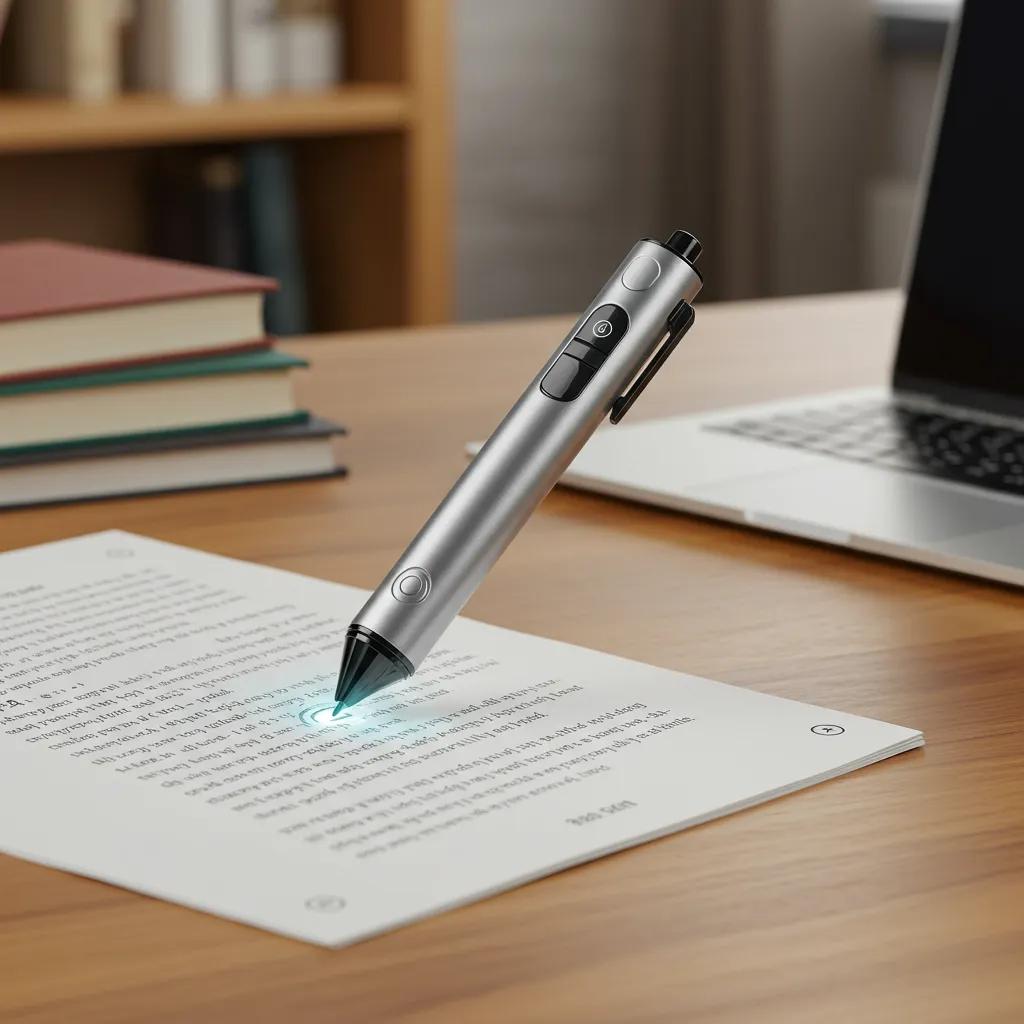
Scanning starts by selecting OCR mode on the pen, aligning the scanning head at the start of a line or block, and moving the pen steadily across the text if the device uses a swipe method or holding still if it captures a frame. For single-line text, sweep slowly and evenly; for paragraphs, use a multi-line capture if available or scan line-by-line while keeping consistent pressure and angle. The pen will process the capture and display detected text, after which you can request an immediate translation or audio playback; expected time-to-result ranges from a couple of seconds for short lines to under ten seconds for longer blocks with an online connection. If recognition misses characters, rescanning with better lighting or slower motion will typically resolve most errors.
What Tips Improve OCR Accuracy and Scanning Speed?
OCR accuracy improves when you control environmental and handling factors that affect image quality and character recognition. Ensure even, shadow-free lighting, hold the pen at a consistent angle (roughly perpendicular to the page), avoid scanning cursive or decorative fonts, and maintain a steady motion—rapid or jerky movement increases recognition errors. Also choose high-contrast print (dark on light) where possible, flatten crumpled pages before scanning and prefer printed text over handwriting for reliable results. These practical adjustments reduce processing time and error rates, allowing the pen’s OCR engine to map characters to language models more confidently and produce faster, more accurate translations.
Which Languages and Text Formats Does the OCR Support?
The pen’s OCR supports a wide set of scripts and typefaces consistent with its 112+ language translation capability, including Latin alphabets, Cyrillic, basic Greek and other common scripts used in travel and study contexts. It handles standard printed formats like single-column text, multi-column layouts, receipts and menus, but it is less reliable on handwriting, heavily stylised fonts, or very small font sizes under 8pt. For less common scripts or complex layouts, online processing and language packs can improve recognition by providing script-specific models, while offline performance may be reduced. Knowing these limitations helps you choose when to rely on OCR vs. photographing a page for human-assisted translation when accuracy is critical.
When offline, prioritise downloading packs for the languages and scripts you encounter most frequently; the connectivity section explains how to manage those packs.
Multilingual Education Enabled by OCR Technology
Optical Character Recognition (OCR) technology functions as a pivotal instrument, transforming images of text into machine-readable data. This technology is instrumental in facilitating multilingual education through diverse applications, such as translation tools capable of processing and comprehending text from various languages and writing systems.
Multilingual education through optical character recognition (OCR) and AI, 2024
How Do You Use Voice Translation on the Memory Tech Device for Real-Time Conversations?
Voice translation uses the pen’s microphone and recognition models to capture spoken input, transcribe it into source text, translate into the target language, and play back speech or text for the listener. Conversation mode typically supports turn-taking, with the device alternating listening and playback, and latency depends on whether translation is processed locally (offline) or via cloud services. Real-time voice translation lets you have short dialogues across language barriers, assisting in directions, ordering or simple business exchanges, but performance improves with clear speech, minimal background noise, and selecting the correct dialect or regional variant when available. Understanding operational settings such as microphone sensitivity and playback options helps you tailor the pen for either public use with speaker playback or private use with earbuds.
How Do You Activate and Use Real-Time Voice Translation?
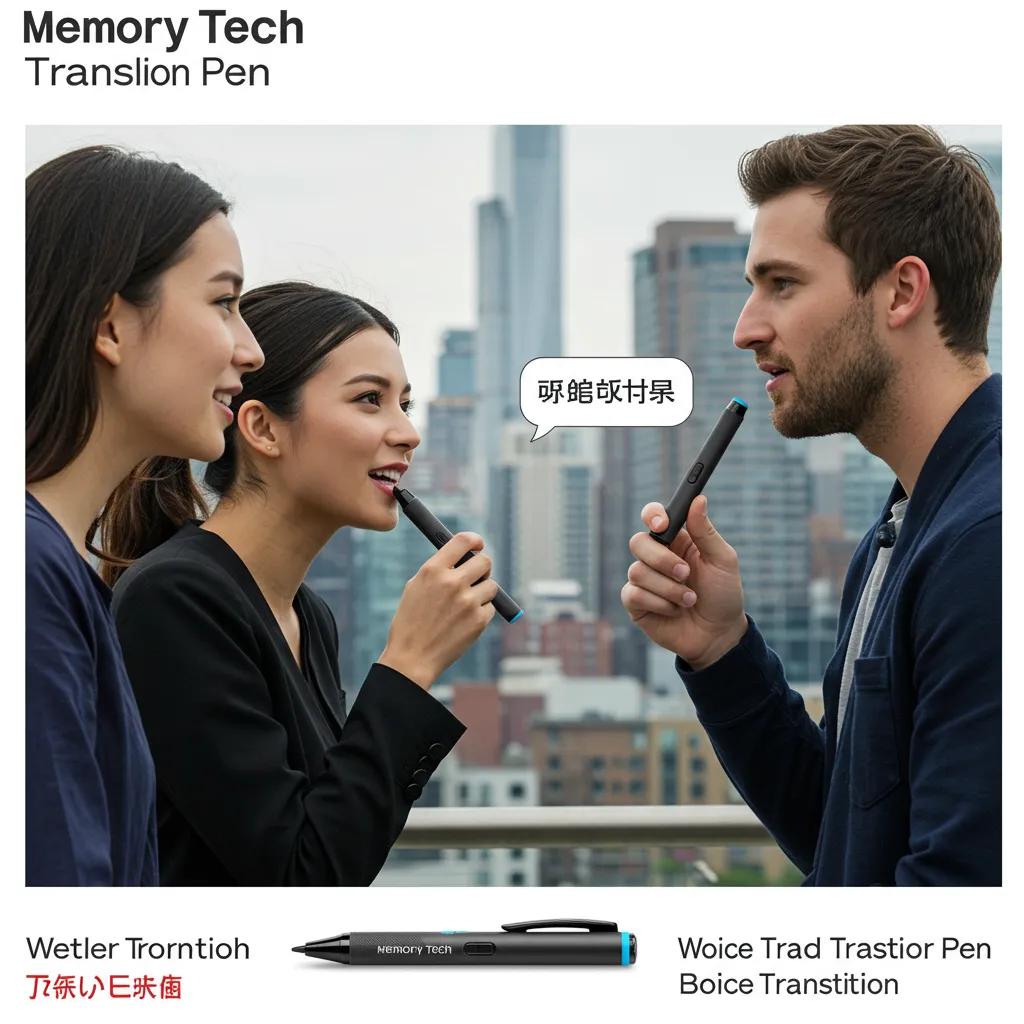
Start by selecting Conversation or Voice mode on the pen, choose the source and target language pair, and place the pen where it can clearly hear the speaker—close enough for a consistent input but not so close as to clip audio. Speak in short sentences and wait for the pen to finish playback before the other party responds; this turn-taking prevents overlap and improves recognition. The pen will display transcribed text and play the translated audio; you can usually toggle between speaker output or a paired Bluetooth earbud for private conversations. Expect brief latency, especially when using cloud-based translation for better accuracy, and practice dialog pacing to make exchanges smooth and predictable.
Can You Use Voice Translation Offline and How?
Offline voice translation is possible by downloading compressed language packs that include local speech recognition and synthesis models, enabling translation without a live network connection. To enable offline use, download the desired language packs while connected to Wi-Fi; store packs on internal storage or an SD card if supported, and confirm they appear in offline mode in Settings. Offline models trade some accuracy and nuance for independence from mobile data, so they are best for essential travel tasks in remote areas or when conserving data costs. Use offline mode for simple phrases and directions, and switch to online mode for complex sentences or when accuracy is paramount.
What Settings Help Improve Voice Recognition and Pronunciation?
Tuning microphone sensitivity, enabling noise reduction, and selecting regional dialect settings when available all improve voice recognition accuracy and the naturalness of speech output. Place the pen’s microphone towards the speaker and speak at a steady, moderate pace; avoid overlapping speech in conversation mode and use short, context-rich phrases for more reliable translations. If the device supports regional accents or alternative models, choose the one that best matches the speaker’s accent to reduce transcription errors. Small practice exercises—such as reading sample phrases and comparing playback—help calibrate user expectations and improve pronunciation consistency, enhancing the device’s performance in live scenarios.
Advancements in Parallel-Processed Multilingual OCR Applications
Nevertheless, multilingual OCR's potential remains largely unacknowledged. Despite increased character recognition capabilities in current documents, ensuring the accuracy of recognised text for diverse applications is paramount.
Parallel processed multi-lingual optical character recognition application, A Pramod Reddy, 2019
How Do You Manage Connectivity and Keep Your Memory Tech Pen Updated?
Keeping the pen connected and updated ensures the latest language models, security patches and bug fixes are applied, maintaining translation accuracy and device reliability. Manage Wi-Fi and Bluetooth pairings for language pack downloads and accessory use, monitor internal storage for downloaded packs, and periodically check for firmware updates that deliver model improvements and new feature support. Below are explicit steps for pairing, download management and firmware updates, followed by a table that summarises typical language pack sizes and download estimates to help plan storage and connectivity.
How Do You Pair the Pen with Wi-Fi and Bluetooth Devices?
Pairing is a straightforward sequence of on-device actions paired with standard Wi-Fi or Bluetooth procedures on your phone or router. For Wi-Fi: go to Settings > Wi-Fi, select network, enter password, and confirm; for Bluetooth: enable pairing on both devices, use the pen’s discovery mode, and accept prompts to pair. If pairing fails, try restarting both devices, forgetting and re-adding the network or device, and ensuring the pen’s firmware supports your accessory. For persistent pairing issues, check for interference from other wireless devices and confirm the pen supports the Bluetooth profile required by your accessories. Proper pairing unlocks features like earbud playback, language pack downloads, and cloud-based translation.
- Enable Wi-Fi or Bluetooth on both the pen and the accessory.
- Use the pen’s discovery or network scan function to find and select the device.
- Reboot, forget and retry if authentication or discovery fails.
These pairing steps prepare the pen for offline pack downloads and firmware updates described below.
How Do You Download Language Packs for Offline Use?
Downloading offline packs requires a stable Wi-Fi connection and sufficient free storage; choose only the languages you need to conserve space, and prioritise common travel or study languages. In Settings > Language Packs, browse available packs, note the pack size, select desired packs and initiate download; the device will show progress and confirm when a pack is available offline. Remove packs you no longer need to reclaim storage and keep a small set for travel to balance offline capability with device performance. Remember that offline packs contain compressed models and may be smaller than cloud models, trading some accuracy for portability.
| Language Pack | Typical Size | Offline Available | Approx. Download Time (Wi-Fi) |
|---|---|---|---|
| Major European (e.g., Spanish/French) | ~120–200 MB | Yes | 1–3 minutes |
| East Asian (e.g., Chinese/Japanese) | ~200–350 MB | Yes | 3–6 minutes |
| Regional/Low-resource (e.g., some African languages) | ~80–150 MB | Partial | 1–4 minutes |
Summary: Plan downloads for primary travel or study languages, use Wi-Fi to save mobile data, and clear unused packs regularly to maintain storage for firmware updates and new languages.
What Is the Firmware Update Process and Why Is It Important?
Firmware updates deliver improvements to OCR models, speech recognition, translation accuracy and security fixes, making them a necessary part of device maintenance. Check for updates in Settings > System > Firmware Update, ensure the pen has 50%+ battery and a stable Wi-Fi connection, then follow on-screen prompts to download and install; the device will reboot during the process and display completion status. If an update fails, retry with a stable connection, ensure sufficient storage, and restart the device; only perform a factory reset as a last resort after backing up settings. Memory Tech recommends regular updates to maintain accuracy and may provide support guidance through the device’s support menu if problems persist.
What Are the Best Tips for Maximising Translation Accuracy with the Memory Tech Pen?
Accuracy hinges on technique, environment and model freshness: good positioning for OCR, clear speech for voice input, and contextual phrasing all improve outcomes. Use steady scanning angles and consistent motion for OCR, enable noise reduction and speak in short phrases for voice translation, and download up-to-date offline packs and firmware to ensure models are current. The table below maps common use cases to practical techniques and expected improvements, offering a concise reference for daily use. These optimisation techniques are practical, accessible and deliver measurable improvements in recognition rates and translation quality.
How Should You Position the Pen for Optimal Text Scanning?
Position the pen so the scanning window is approximately perpendicular to the page and aligned with the text baseline, using a steady sweep for single-line scans or a slow line-by-line approach for paragraphs. Maintain consistent speed and gentle contact if the device requires pressure, and avoid angled scans which introduce keystone distortion that harms OCR. Use diffuse lighting to reduce shadows and increase contrast between text and background; when scanning glossy or reflective paper, tilt slightly to remove glare. These small changes greatly improve OCR character segmentation and downstream translation accuracy.
How Does Clear Pronunciation Affect Voice Translation Accuracy?
Clear pronunciation reduces ambiguity for the speech recognition model, enabling more accurate transcriptions that feed into the translation engine; speak slowly, enunciate key words and avoid idiomatic phrasing when possible. Pause between sentences to allow the pen to complete transcription and translation cycles, and ask the device to repeat or display the transcription to confirm correct recognition before proceeding. If recognition repeatedly fails for certain sounds, rephrase using synonyms or spell proper nouns to help the model. Regular practice with playback comparison helps users calibrate their speech for optimal recognition under real-world conditions.
| Use Case | Technique | Expected Improvement |
|---|---|---|
| Menu OCR scans | Perpendicular angle + strong, even lighting | 30–50% fewer recognition errors |
| Two-way conversations | Short sentences + clear pauses | 20–40% faster accurate responses |
| Small-font documents | Slow, line-by-line scans + zoom/contrast | 25–45% higher OCR retention |
Summary: Applying these targeted techniques gives tangible accuracy gains and reduces the need for repeated scans or rephrasing in conversation, helping you rely on the pen for real-world tasks.
How Can Contextual Awareness Improve Translation Quality?
Providing short context phrases, specifying subject matter or offering clarifying nouns helps the translation engine choose correct meanings for ambiguous words. For example, prefacing a sentence with the topic (“medical: …”) or using specific terminology narrows translation choices and reduces semantic errors. Use the pen’s ability to display both original and translated text to resolve ambiguity immediately and, when necessary, supply alternate phrasings to refine results. Contextual hints are especially valuable for homonyms, technical vocabulary and region-specific terms that generic models might mistranslate.
Contextual awareness speeds accurate comprehension and reduces back-and-forth corrections during conversations or document review, preparing you for practical use-cases in Australian settings.
What Are the Top Use-Cases for the Memory Tech Translation Pen in Australia?
The pen is well suited to Australian travellers needing quick translations abroad, students working with foreign-language materials, and professionals handling cross-language communication in informal meetings. Its combination of OCR and voice translation addresses common tasks like reading menus, scanning research papers, practising pronunciation and facilitating short client exchanges, with offline packs enabling use in remote destinations. Memory Tech positions this device as a practical gadget for everyday language assistance that supports travel, study and business needs in Australia, emphasising usability and reliable update pathways for local users. Below are specific scenarios with practical tips and role-based recommendations.
How Does the Pen Assist Australian Travellers Abroad?
For travellers, the pen is especially useful for scanning menus, translating signs and handling quick conversational needs like asking for directions or ordering food; offline language packs are essential for remote regions where roaming data is costly. Use OCR to capture menus and receipts, then play translations aloud or show the translated text to locals, and download destination languages before departure to ensure offline conversation support. Keep the pen charged with a portable power bank during long journeys and pair with earbuds for private playback in crowded spaces. These travel habits make the pen a compact travel companion that reduces friction when navigating foreign-language environments.
Practical travel preparation extends to students and professionals who also benefit from targeted pack selection and regular updates.
How Can Students Benefit from the Translation Pen for Language Learning?
Students can use the pen to scan foreign-language articles and books, convert passages to translated text for study, and practise pronunciation using voice playback for targeted vocabulary. The device supports active learning through immediate feedback: scan a paragraph, attempt translation manually, then compare with the device’s output to identify gaps in comprehension. Use the pen’s record-and-review functions to track pronunciation progress and create short revision clips from scanned passages. These workflows turn the pen into an assistive reading technology for study, vocabulary building and accessibility support for learners with reading difficulties.
Integrating the pen into study routines creates repeatable practice cycles and makes foreign texts accessible for coursework and research.
How Is the Device Useful for Business Communication in Australia?
In business contexts the pen can support short client conversations, rapid document scanning for gist-level understanding, and on-the-fly clarification during meetings where immediate human translation is impractical. Use it to confirm meeting points, scan key contract clauses for quick comprehension, and provide simultaneous clarification during informal negotiations, while remembering that the device is not a substitute for certified legal translation on critical documents. Store languages relevant to your markets and keep firmware updated to maintain accuracy for business terminology. These precautions make the pen a productivity tool for international teams and travelling professionals.
Choosing when to rely on the pen versus professional services helps manage risk and ensures accurate outcomes for legal or contractual matters.
What Are Common Issues with the Memory Tech Translation Pen and How Do You Troubleshoot Them?
Common issues include connectivity interruptions, OCR misreads and delayed translations; most problems can be fixed with a systematic checklist that includes restarting the device, checking network settings, updating firmware and reviewing language pack status. Troubleshooting should proceed from simple fixes to more in-depth diagnostics, collecting device information like model and screenshots if escalation to support is needed. Below are stepwise solutions for connectivity problems, accuracy issues and guidance for when to contact Memory Tech support for persistent faults. This problem-solution approach reduces downtime and keeps the device reliable for regular use.
How Do You Fix Connectivity Problems Like Wi-Fi or Bluetooth Failures?
Begin with a restart of both the pen and the accessory or router, then retry the connection; often a reboot resolves transient network or pairing conflicts. If Wi-Fi fails, confirm credentials on another device, ensure the router supports the required band, and forget and re-add the network on the pen; for Bluetooth, unpair and re-pair the accessory and confirm the accessory’s battery level. If the pen reports specific error codes, note them and consult the device support menu for troubleshooting steps or suggested resets. As a last resort, perform a network settings reset on the pen to clear corrupted configurations, then reconfigure connections.
- Restart pen and accessory/router.
- Forget and re-add networks or Bluetooth pairings.
- Reset network settings if persistent failures occur.
What Should You Do If Translations Are Inaccurate or Delayed?
First check whether you are in offline mode or need a language pack update, as outdated packs and firmware often cause inaccuracies or latency; update firmware and language packs while on Wi-Fi. Rephrase inputs, use shorter sentences, and ensure clear pronunciation to eliminate recognition errors; test with a known-good source like a printed sentence to compare results. If delays persist, check network speed and switch to offline models if cloud latency is the issue, or move to a quieter environment for voice capture. Repeat scans or translations with adjusted settings and consider reinstalling packs if corrupted.
When Is It Necessary to Contact Memory Tech Support?
Contact Memory Tech support when you encounter persistent hardware failures (boot loops, unresponsive touch display), failed firmware updates that leave the device unusable, or reproducible errors after exhaustive troubleshooting steps. Prepare diagnostic information such as the model/serial number, screenshots of error messages, recorded steps to reproduce the issue, and any logs the device can export before contacting support. Memory Tech’s support guidance is particularly useful for update recovery steps and warranty-related hardware repairs; keeping this information readily available speeds resolution. Collecting accurate diagnostic data helps support identify software vs hardware faults efficiently.
How Does the Memory Tech Translation Pen Compare to Other Translator Devices Available in Australia?
Comparisons hinge on core features: OCR accuracy, language coverage, offline capability and battery life, along with form-factor trade-offs between pens, handheld voice-only devices and camera-based translators. The Memory Tech Translation Pen’s unique combination of OCR plus conversation mode and 112+ language support positions it as a strong all-round tool for reading and short conversation tasks. The table below compares the Memory Tech pen with two broad device types on key attributes so Australian buyers can quickly decide which form factor suits their needs.
| Device | Core Feature | Value |
|---|---|---|
| Memory Tech Translation Pen | OCR + Voice Translation; 112+ languages; offline packs | Strong for reading and quick two-way conversations |
| Handheld Voice Translator | Large speaker, real-time conversation focus | Best for live dialogues but limited OCR |
| Camera Translation Device | Camera-first translation and image capture | Ideal for signage/maps but less convenient for quick conversations |
Summary: Consider whether you prioritise reading printed material, continuous conversation accuracy, or camera-based scene translation—match the device type to your primary needs, and factor in offline requirements and support cadence.
What Are the Key Features That Differentiate Memory Tech from Competitors?
Memory Tech differentiates through a balanced feature set that combines accurate OCR scanning with real-time voice translation and broad language support, making it useful across travel, study and business scenarios. The pen form factor supports discreet scanning and private playback via earbuds, while periodic firmware and language pack updates maintain model quality. Accessibility features such as read-aloud for scanned text also broaden the device’s usefulness for learners and users with reading difficulties. These practical differences make Memory Tech’s device a strong candidate for Australians seeking a compact, multi-modal translator rather than a single-purpose gadget.
How Does Language Support and Offline Capability Compare?
Memory Tech’s claim of 112+ languages indicates broad coverage suitable for most travel and study needs, and offline language packs provide workable models when connectivity isn’t available. Compared to devices that prioritise cloud accuracy, offline packs on the pen trade some nuance for portability, but they remain sufficient for essential tasks like menus and directions. Prioritise downloading packs for the languages you use most and test offline accuracy for region-specific expressions. This balance between breadth of language support and offline practicality is central to choosing the right device for your use case.
Which Device Offers the Best Value for Australian Users?
Value depends on buyer persona: travellers prioritising light weight and offline packs may favour the Memory Tech pen for its OCR plus voice features; students requiring reading assistance and revision tools benefit from OCR and playback; business users who need sustained conversation accuracy might prefer more conversation-focused handheld translators. Evaluate total cost of ownership by considering essential accessories (earbuds, carry case), frequency of firmware updates and the need for professional translations for critical documents. For many Australians seeking a compact, versatile translator for study and travel, the Memory Tech pen represents balanced value between functionality and portability.
Memory Tech’s device offers practical advantages for multi-purpose use; if your primary need is single-mode translation, weigh alternatives accordingly.
CONTENT INTENT:
Educate and inform readers about the benefits and practical uses of translation technology while building trust in Memory Tech’s innovative gadgets for Australian customers.
Frequently Asked Questions
What types of environments are best for using the Memory Tech Translation Pen?
The Memory Tech Translation Pen performs optimally in well-lit environments with minimal background noise. For OCR scanning, ensure that the lighting is even and shadow-free to enhance text recognition accuracy. When using voice translation, a quiet setting helps the microphone capture speech clearly, reducing the chances of misinterpretation. Avoid areas with loud sounds or distractions, as these can interfere with both the scanning and voice recognition processes, leading to less accurate translations.
Can the Memory Tech Translation Pen be used for languages not included in the pre-installed packs?
While the Memory Tech Translation Pen comes with a wide range of pre-installed language packs, users can download additional language packs as needed. This feature allows for flexibility in language support, enabling users to access languages that may not be included by default. However, it is essential to ensure that the device has sufficient storage and a stable internet connection to download these additional packs effectively.
How does the Memory Tech Translation Pen handle technical jargon or specialised vocabulary?
The Memory Tech Translation Pen is designed to handle everyday language and common phrases effectively. However, when it comes to technical jargon or specialised vocabulary, the accuracy may vary. For best results, users should provide context or use simpler terms when possible. If the device struggles with specific terminology, consider using synonyms or rephrasing to enhance understanding. Regular updates to language packs can also improve the device's handling of specialised terms over time.
Is there a limit to the length of text that can be scanned or translated at once?
Yes, the Memory Tech Translation Pen has practical limits on the length of text it can scan or translate effectively in one go. For optimal results, it is recommended to scan single lines or short paragraphs at a time. Longer texts may lead to delays in processing or inaccuracies in translation. Users should break down extensive documents into manageable sections to ensure the best performance and accuracy from the OCR and translation features.
What should I do if the pen's battery drains quickly during use?
If you notice that the Memory Tech Translation Pen's battery drains quickly, consider checking for background processes that may be consuming power, such as continuous Wi-Fi or Bluetooth connections. Reducing screen brightness and disabling unnecessary features can also help conserve battery life. Additionally, ensure that the device's firmware is up to date, as updates often include optimisations for battery performance. For extended use, carrying a portable charger can be beneficial during long trips.
Can the Memory Tech Translation Pen be used for learning new languages?
Absolutely! The Memory Tech Translation Pen is an excellent tool for language learners. It allows users to scan and translate foreign texts, helping them understand vocabulary and grammar in context. The voice playback feature also aids in pronunciation practice, making it easier to learn correct intonation and accent. By actively engaging with the device, learners can enhance their language skills through immediate feedback and practical application in real-world scenarios.
How do I ensure the Memory Tech Translation Pen stays updated with the latest features?
To keep the Memory Tech Translation Pen updated, regularly check for firmware updates in the device settings. Ensure that the pen is connected to a stable Wi-Fi network to download the latest updates. Additionally, periodically review and download new language packs to enhance translation capabilities. Staying proactive with updates not only improves performance but also ensures access to the latest features and security enhancements, providing a better user experience overall.
Conclusion
The Memory Tech Translation Pen empowers users with seamless OCR and voice translation capabilities, making it an invaluable tool for Australian travellers, students, and professionals alike. By facilitating quick and accurate translations, it enhances communication and comprehension in diverse settings, ensuring users can navigate language barriers with confidence. To experience the benefits of this innovative device, consider exploring our range of Memory Tech products tailored to your needs. Start your journey towards effortless communication today!